Simple steps to protect yourself online
The short version
- Get a password manager.I use 1Password. It remembers a different password for every site.
- Turn on two-step loginfor your email and bank, using codes from your password manager instead of texts.
- Turn on automatic updatesand restart your phone and computer weekly.
- Freeze your creditat Equifax, Experian and TransUnion. It's free and takes 20 minutes.
- Get an IRS PINat irs.gov/ippin before mid-November.
- Lock your phone numberin your carrier's app. It takes two minutes.
Recent hacks and data breaches have exposed a lot of people's personal information, and AI is making scams and break-ins cheaper and more convincing. The good news is that a few simple steps block most of it. This page walks you through the six that matter most. Almost everything here is free, and you can spread it over a few evenings.
One deadline: The IRS PIN has to be done by mid-November, or you'll have to wait until January.
If you get stuck on anything, feel free to reach out.
Start here: check if your email has been exposed
Go to haveibeenpwned.com and type in each email address you use. It's free, and it shows which company data breaches have exposed your information.
- Don't panic at a long list. Most people find their email in at least a few breaches. It just shows why the steps below matter.
- Look at what leaked. If a breach included passwords, change that site's password first, plus anywhere else you used the same one (see Use a password manager).
- Click Notify Me to get an email if your address shows up in a future breach.
Once you're set up with 1Password, its Watchtower feature keeps checking for you and flags any passwords that are weak, reused or exposed in a breach.
Use a password manager, and never reuse a password
When one website gets hacked, criminals try that same email and password on every other site. If you reuse passwords, one breach can give them access to other accounts. A password manager remembers a different strong password for every site, so you only have to remember one.
I use and recommend 1Password.
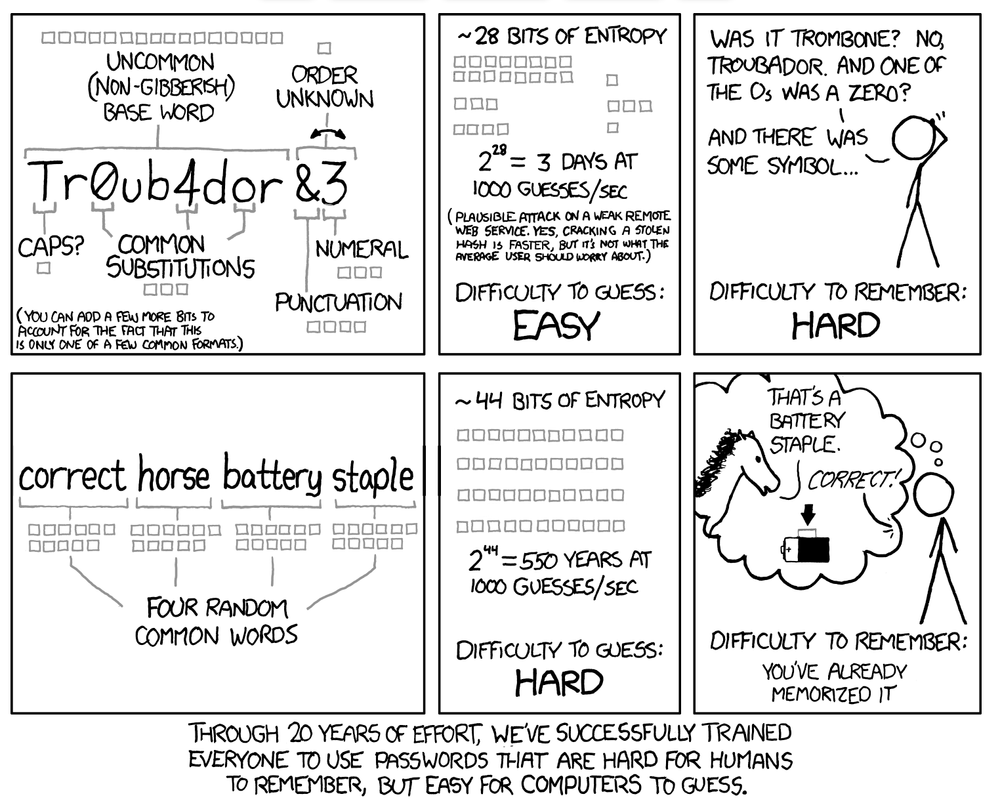
Comic: "Password Strength" by xkcd (CC BY-NC 2.5).
How it works. 1Password is an app that keeps all your passwords in a locked, encrypted vault. You unlock it with one master password, or with your face or fingerprint on your phone. When you go to a login page, it fills in your username and password for you. When you create a new account, it makes up a strong password or passphrase and saves it. Not even 1Password the company can see what's in your vault.
It works on all your devices. Install the app on your phone, computer and tablet, plus the browser extension on your computer (Chrome, Safari, Edge or Firefox). Everything syncs automatically, so a password you save on your laptop shows up on your phone a moment later, and it fills passwords in phone apps too. If you lose a device, nothing is lost; your passwords are still on your other devices and in your account.
Why a passphrase?
A few random words are much harder for a computer to guess than a short password full of symbols, and much easier for you to remember:
Pick words that are truly random, not a song lyric or saying, and don't use "correct horse battery staple" itself, since it's famous now. For all your other accounts, let 1Password make up the passwords. If you need one you'll type by hand, like on a TV, its password generator can make a word-based passphrase too.
What you actually need to memorize
Once you use a password manager, it's just three things:
- Your 1Password master password. It unlocks everything else, so make it a passphrase. Also write it on your printed Emergency Kit and keep that somewhere safe at home.
- Your phone passcode. It unlocks your phone, and 1Password on it, whenever Face ID or your fingerprint doesn't work. Use at least 6 digits, not your birthday, and don't let anyone watch you type it in public. On an iPhone, also turn on Stolen Device Protection (Settings → Face ID & Passcode).
- Your computer password. You need it to get into your computer before 1Password can open.
Plus your family code word (see "A few more habits"), which you should memorize and never write down. Everything else, including your email, bank and Apple or Google passwords, lives in 1Password. If you ever lose all your devices, your Emergency Kit and master password get you back into 1Password from any web browser.
About passkeys
A passkey is a newer, easier replacement for a password. You sign in with your face, fingerprint or phone unlock, so there's nothing to type, remember, or get tricked into handing over. A fake website can't steal it, and it can't leak in a data breach. Google, Apple, Amazon, PayPal and a growing number of banks offer them. When a site asks if you want to create a passkey, say yes and let 1Password save it so it works on all your devices. Don't mix it up with a passphrase: a passphrase is words you memorize, while a passkey is stored on your devices and you never see it.
What it costs
Prices as of October 2026, paid yearly:
| Plan | Price | Covers |
|---|---|---|
| Individual | Priceabout $48 a year ($3.99/month) | Covers1 person |
| Families | Priceabout $72 a year ($5.99/month) | CoversUp to 5 people, each with a private vault, plus shared vaults for things like the Wi-Fi or streaming passwords |
Paying month to month costs a little more. There's a 14-day free trial, and new customers are often offered a first-year discount. On a Families plan, the organizer can get anyone back in if they forget their master password. See current prices.
Can I just use Apple's free Passwords app instead?
If everything you own is Apple (iPhone, iPad, Mac), yes. It's built in, free, and covers the essentials: strong passwords, passkeys, two-step codes (it can do two-step login the same way 1Password does), and alerts when a password shows up in a breach. It syncs through iCloud and works on a Windows PC through iCloud for Windows. The limits: there's no Android version, it's clunkier outside Apple's own apps and browsers, and it can't store notes or documents. If you're all-Android, Google Password Manager is the similar free option.
What about Bitwarden?
Bitwarden is free for everything except two-step codes. The free plan saves and fills all your passwords on unlimited devices: iPhone, Android, Mac and Windows. I use it at work and it's solid, just a bit less polished than 1Password.
- Two-step codes: storing them inside Bitwarden needs its Premium plan, about $20 a year. Or stay free and keep the codes in Bitwarden's separate free Authenticator app instead.
- Families: about $48 a year for six people, cheaper than 1Password's Families plan.
If you won't pay for a password manager and use a mix of devices, this is the one to get. Bitwarden plans.
How much work is it?
About an hour to get set up and secure your important accounts, then a minute here and there after that.
- Moving your passwords in takes 15 to 30 minutes, once. If they're saved in a browser, another app (Chrome, Safari or Apple Passwords, Edge, Firefox, LastPass), or a spreadsheet, 1Password's import tool walks you through bringing them all over at once. Afterward, delete the exported file, since it's a plain list of every password, and turn off your browser's own password saving so the two don't compete. If your passwords are in your head or a notebook, there's nothing to import: 1Password offers to save each login the next time you sign in.
- Replacing weak and reused passwords is a few minutes per account. 1Password's Watchtower shows which passwords are reused, weak or exposed in a breach. Do your 10 most important accounts in one sitting (see The accounts to protect first), then fix the rest whenever you next log in. No need to do everything in one weekend.
Any of these is far better than reusing passwords.
Getting set up:
- Start a free trial at 1password.com. Install the app on your phone and computer, and add the browser extension when it offers.
- Make your master password a passphrase: four or more random words strung together (see above).
- Save your Emergency Kit when 1Password offers it. It's a one-page PDF with your Secret Key, a long code that, together with your master password, lets you sign in on a new device. Print it, write your master password on it, and keep it with your important papers in a place only you know.
- Each time you log in to a site, let 1Password save it. Then go to that site's "change password" page and let 1Password create a new strong one. Start with the accounts to protect first.
Turn on two-step login, with codes from 1Password
Two-step login (also called two-factor or 2FA) means a site asks for a 6-digit code after your password. Even if a criminal steals your password, they can't get in without the code.
Avoid getting those codes by text message when you have a choice, because criminals can hijack your phone number (see Lock your phone number) and read your texts. But if a site only offers text codes, use them anyway. That's still far better than nothing.
- Use 1Password as your authenticator. It's built in, so there's no extra app to install, and it fills in the code for you when you log in. Your codes sync to all your devices, so losing your phone won't lock you out.
- On each important site, go to the security settings and look for "two-step verification" or "two-factor." Can't find it? Search the site's name at 2fa.directory for a direct link. Choose authenticator app. When the site shows a square barcode, edit that site's login in 1Password, add a one-time password, and scan the barcode (1Password's guide).
- Save the backup codes the site gives you, in 1Password or on paper with your Emergency Kit. They get you in if something goes wrong.
- If a site offers a passkey, say yes. See "About passkeys" in the password manager section.
The accounts to protect first
Give these a unique password and two-step login before anything else. They're listed most important first. Your email is #1 because anyone who controls it can reset the password on almost everything else.
| # | Account | Why it matters |
|---|---|---|
| 1 | Your email (Gmail, Outlook, iCloud, Yahoo, AOL) | Why it mattersPassword resets for every other account go here |
| 2 | Apple Account or Google Account | Why it mattersControls your phone, photos, backups and Find My |
| 3 | 1Password | Why it mattersHolds everything else; keep your Emergency Kit safe |
| 4 | Cell phone carrier (Verizon, AT&T, T-Mobile) | Why it mattersControls your number and text-message codes |
| 5 | Banks and credit cards | Why it mattersDirect access to your money |
| 6 | Retirement and investments (401(k), IRA, Fidelity, Vanguard, Schwab) | Why it mattersUsually your largest balances, and checked least often |
| 7 | Money apps (PayPal, Venmo, Zelle, Cash App) | Why it mattersPayments are instant and hard to reverse |
| 8 | Government (IRS, Social Security, Medicare) | Why it mattersCreate your Social Security account yourself, so a scammer can't create one in your name |
| 9 | Shopping with saved cards (Amazon, Costco, Walmart) | Why it mattersCriminals order on your card and ship elsewhere |
| 10 | Social media (Facebook, Instagram, WhatsApp) | Why it mattersHijacked accounts are used to scam your friends and family |
| 11 | Health insurance and patient portals | Why it mattersMedical records and insurance can be used for fraud |
If any of these still uses a password you've used anywhere else, change it first.
Turn on automatic updates, and restart once a week
Updates fix the security holes criminals use to break into phones and computers. Most updates download on their own but don't actually install until you restart. So pick a day, like Sunday night, and restart your phone and computer every week.
| Device | Where to turn on automatic updates |
|---|---|
| iPhone / iPad | Where to turn on automatic updatesSettings → General → Software Update → Automatic Updates → turn everything on (Apple's guide) |
| Android phone | Where to turn on automatic updatesSettings → System (or Software update) → Software update. Menu names vary by brand. |
| Mac | Where to turn on automatic updatesApple menu → System Settings → General → Software Update → click the ⓘ next to Automatic Updates → turn everything on (Apple's guide) |
| Windows PC | Where to turn on automatic updatesStart → Settings → Windows Update → Check for updates. Under Advanced options, turn on updates for other Microsoft products. |
Also keep your apps and web browser updated. On a phone, turn on automatic app updates in the App Store or Google Play settings. For Chrome, Edge or Firefox, fully quit and reopen it when it says an update is ready.
Old devices stop getting updates
Automatic updates only help if your device still receives them. If your phone or computer says it can't install the latest version, it's time to replace it. Windows 10 PCs only get security fixes if they're enrolled in Microsoft's Extended Security Updates program, which now runs through October 2027. Plan to move to Windows 11 or a new computer before then.
Freeze your credit at all three credit bureaus
A credit freeze stops anyone, including a criminal with your Social Security number, from opening a new credit card or loan in your name. It's free by law, doesn't hurt your credit score, and doesn't affect the cards you already have. You can lift it in minutes when you apply for something new.
You have to do it separately at each of the three bureaus. Plan on about 20 minutes total, by website or phone:
| Bureau | Online | Phone |
|---|---|---|
| Equifax | Onlineequifax.com credit freeze | Phone1-888-298-0045 |
| Experian | Onlineexperian.com/freeze | Phone1-888-397-3742 |
| TransUnion | Onlinetransunion.com/credit-freeze | Phone1-888-909-8872 |
- Have your Social Security number, birthday and current address handy.
- Choose "freeze", not "lock" or "fraud alert." Locks can cost money; freezes are free.
- You never need to give a credit card number. If a page asks for payment, you're in the wrong place.
- Uncheck any boxes signing you up for marketing emails or paid monitoring.
- Save each login or PIN in 1Password. You'll need it to unfreeze before applying for a loan, credit card, apartment or new phone plan.
Optional extras
also freeze your file at ChexSystems, which banks check when someone opens a new checking account in your name. And consider freezing your children's credit too; each bureau's freeze page explains how to do it for a minor.
Get an IRS Identity Protection PIN
Criminals file fake tax returns using stolen Social Security numbers and collect the refund before you file. An Identity Protection PIN is a 6-digit number that must be on your tax return, so the IRS rejects any return filed without it.
- Go to irs.gov/ippin and click Get an IP PIN.
- Sign in or create an account through ID.me. Have a photo ID and your smartphone ready; it asks for a selfie to confirm it's you. Allow about 15 minutes.
- Your PIN appears on screen. Save it in 1Password.
- Give the PIN to whoever does your taxes, or enter it in your tax software when you file.
Timing: the online tool is generally open mid-January to mid-November. If you miss it this year, do it as soon as it reopens in January. You get a new PIN every year, so look it up in your IRS account each tax season. Your spouse and dependents can each get their own.
Lock your phone number with your cell carrier
In a "SIM swap" scam, a criminal calls your carrier pretending to be you and gets your number moved to their phone. Then they receive your texts and calls, including bank codes and password resets. All three big carriers have a free lock that blocks this. Turn it on in your carrier's app; it takes two minutes.
| Carrier | What to turn on | Where |
|---|---|---|
| Verizon | What to turn onNumber Lock and SIM Protection (both) | WhereMy Verizon app → Account → Account settings → Security (Verizon's guide) |
| AT&T | What to turn onWireless Account Lock (covers both) | WhereAT&T app → tap the person icon (or Services → Mobile Security) → Wireless Account Lock (AT&T's guide) |
| T-Mobile | What to turn onPort Out Protection and SIM Protection (both) | WhereT-Life app → Manage → your line's add-ons and security settings (T-Mobile's guide) |
On a family plan, the person who manages the account has to turn it on, and some carriers need it set for each line. On another carrier (Google Fi, Visible, Mint, Cricket and so on), call them and ask for a "port-out lock" and a "SIM-change lock." Also make sure your account PIN isn't something obvious like your birthday.
If you ever switch carriers or get a new phone, you'll turn the lock off for a few minutes first, then back on.
A few more habits
Be suspicious of any unexpected call, text or email. Scammers pretend to be your bank, the IRS, Amazon, Microsoft or your cell carrier, and they sound official and urgent. Real companies will never ask you to:
- read them a login code or PIN, or turn off a security lock
- move money to a "safe account," or pay with gift cards, crypto or a wire transfer
- install software so they can "fix" your computer
If in doubt, hang up and call the number on the back of your card or on the company's real website.
Pick a family code word. Scammers can now copy someone's voice from a short video clip and call pretending to be a relative in trouble. Agree on a word only your family knows, and ask for it before sending money to anyone, no matter how real they sound.
Turn on bank and credit card alerts. In your bank's app, turn on a notification or text for every purchase and withdrawal. You'll spot fraud within minutes instead of at the end of the month.
Practice spotting scam emails. My friend made a fun game, Phishing Simulator 2000, that puts you in a pretend inbox where you figure out which emails are scams. It's a safe way to learn the warning signs before a real one shows up.
Hardware keys. I personally use YubiKeys. If you're interested, I can help.
Sources
Put together by me (inspired by @peterwildeford), with help from Claude, using the official sources below.